


.svg)

How to Claim a .locker Digital Identity


Claiming a .locker digital identity is easy. After registering a .locker domain name with a registrar or reseller of choice, registrants will receive an email from .locker with a Claim Now link. That begins the process of claiming a .locker digital identity on the Ethereum blockchain.
There are two main components involved in claiming your .locker digital identity with a new digital wallet:
- Digital wallet setup
- Connecting your digital wallet to your .locker digital identity
Configuring a digital wallet is required in order to claim a digital identity. .locker suggests using MetaMask, one of the most well-known digital wallets available. You also have the option of using an EVM-compatible digital wallet of choice during setup. Find the guide for setting up with an existing digital wallet here.
Before You Start
- Be sure to use the latest version of your browser.
- Enable pop-ups and third party cookies. If you can’t find the digital wallet window at any time, be sure your browser window isn’t blocking it
- Log out of any existing digital wallets
- Be mindful of safety and security practices. Never share your private key or seed phrase with anyone- including .locker! .locker will never request this information from you. Only approve requests coming from your digital wallet extension or app.my.locker. Always double check that URLs are correct before completing any activities
If you run into any issues with claiming your digital identity, contact .locker’s support team. Your domain registrar will not be able to assist with this process.
How to Claim a Digital Identity with MetaMask
Watch the video or review our step-by-step guide below.
After registering a .locker domain name, you will receive an email from .locker with the link to claim your digital identity. In your email, click the “Claim Now” link to start the claiming process.
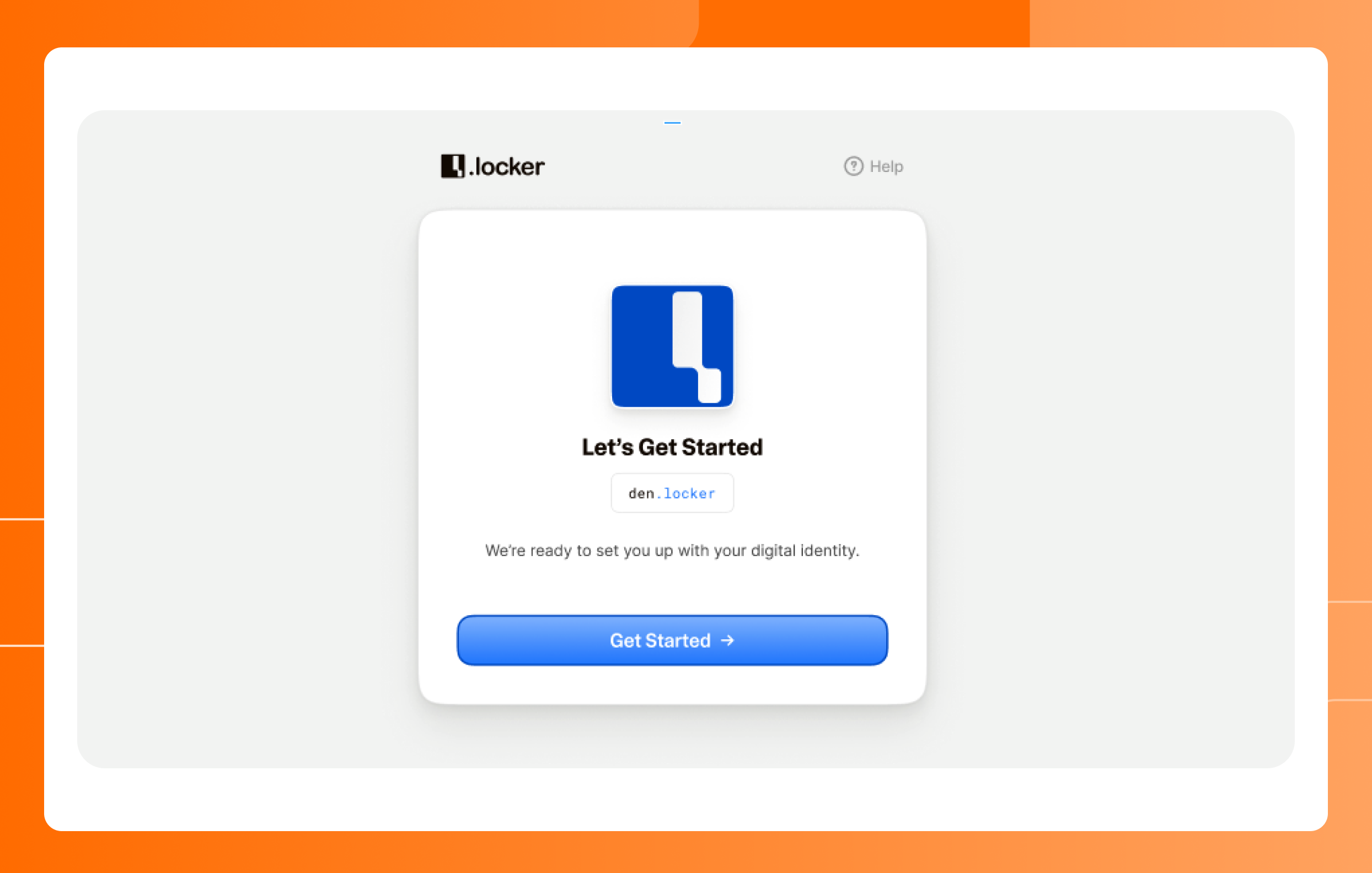
1. Click “Get Started” in the .locker application.
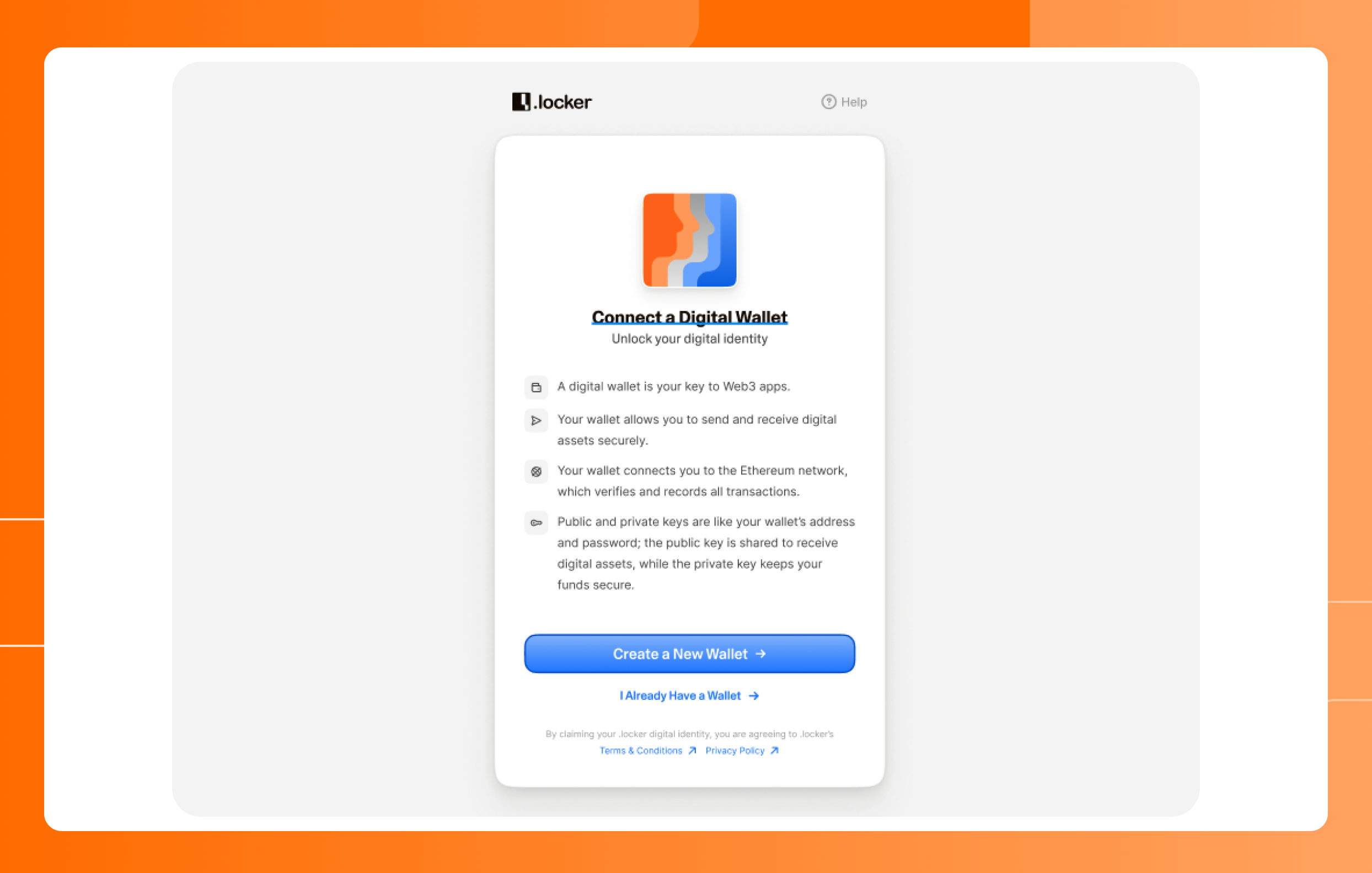
2. Select “Create a New Wallet."
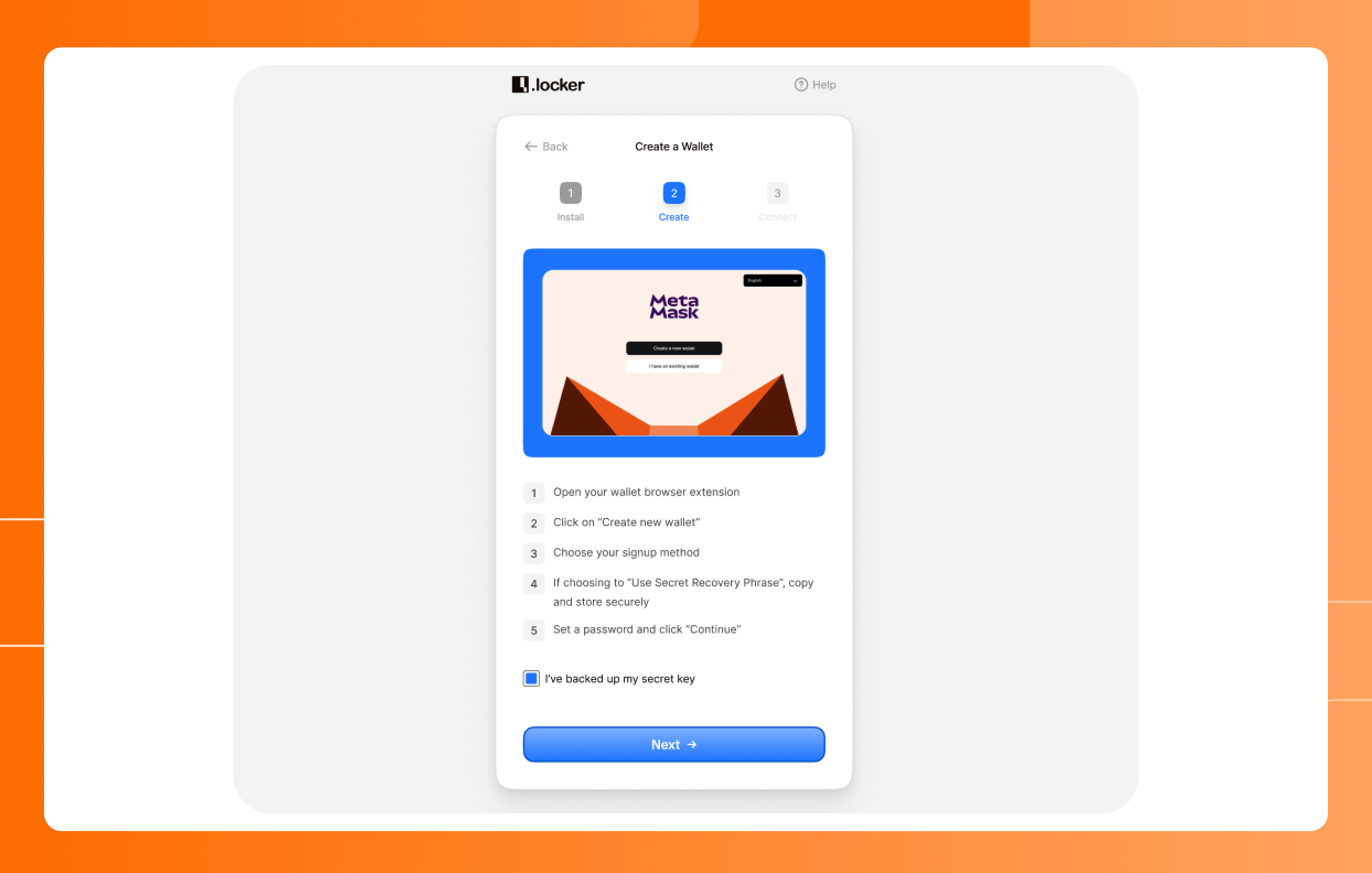
3. Download and install the MetaMask extension from your browser’s store. We suggest using Chrome, but MetaMask works with most major browsers. Make sure pop-ups are enabled and give the extension permission to operate in your browser. Click “Next” once the MetaMask extension is installed.

4. You'll be prompted to create a new wallet with MetaMask. Follow the prompts to create a new wallet. Save your Recovery Phrase in a safe spot. We recommend using a password manager protected by two-factor authentication and maintaining multiple, secure copies of this phrase. Once you have securely saved your Recovery Phrase, click “Next.”
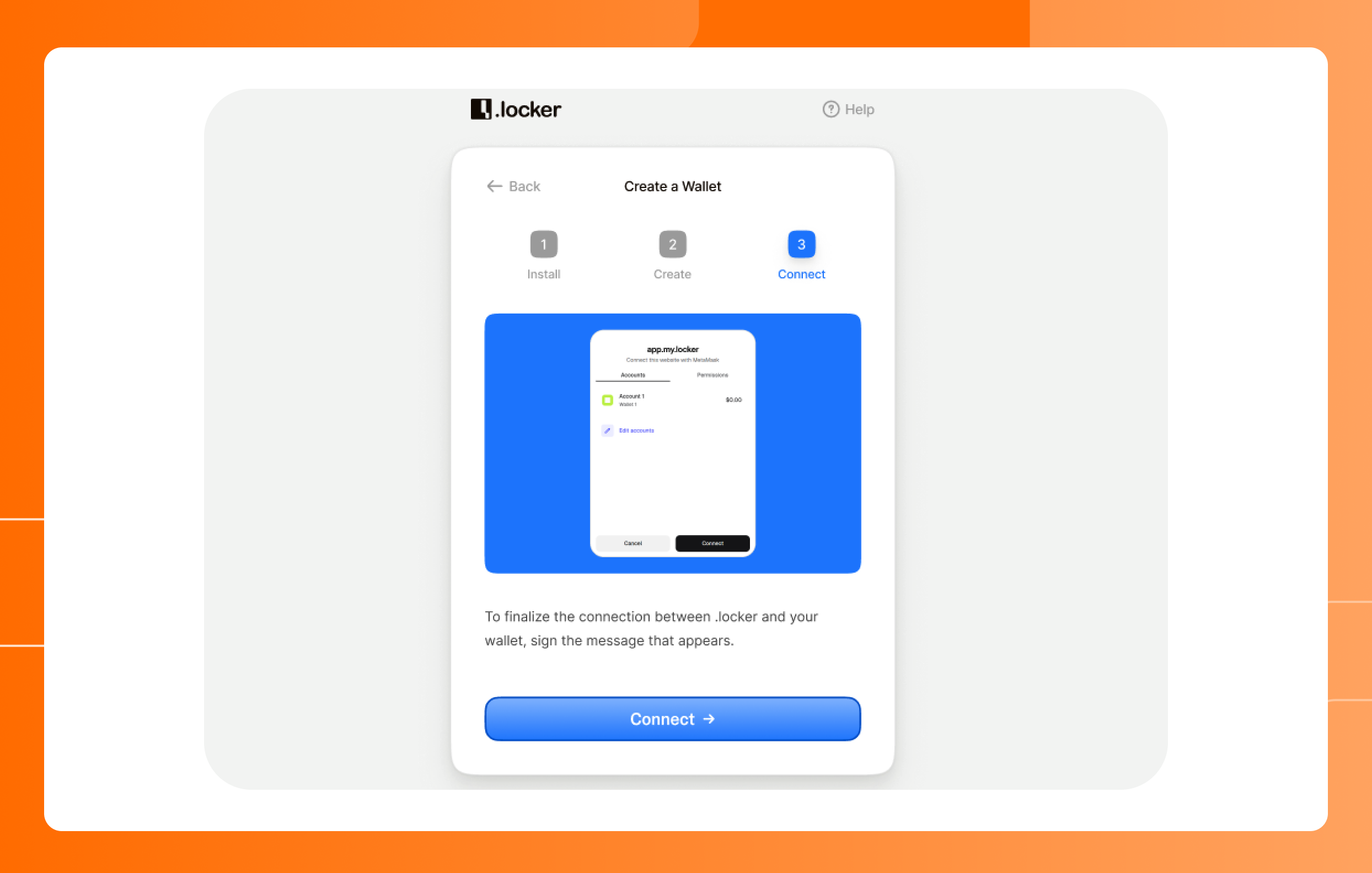
5. You now need to finalize the connection between your digital wallet and your .locker digital identity. Click “Connect.” You’ll be asked to sign a transaction with MetaMask in a pop-up window. This signature authorizes the connection of the digital wallet and digital identity.
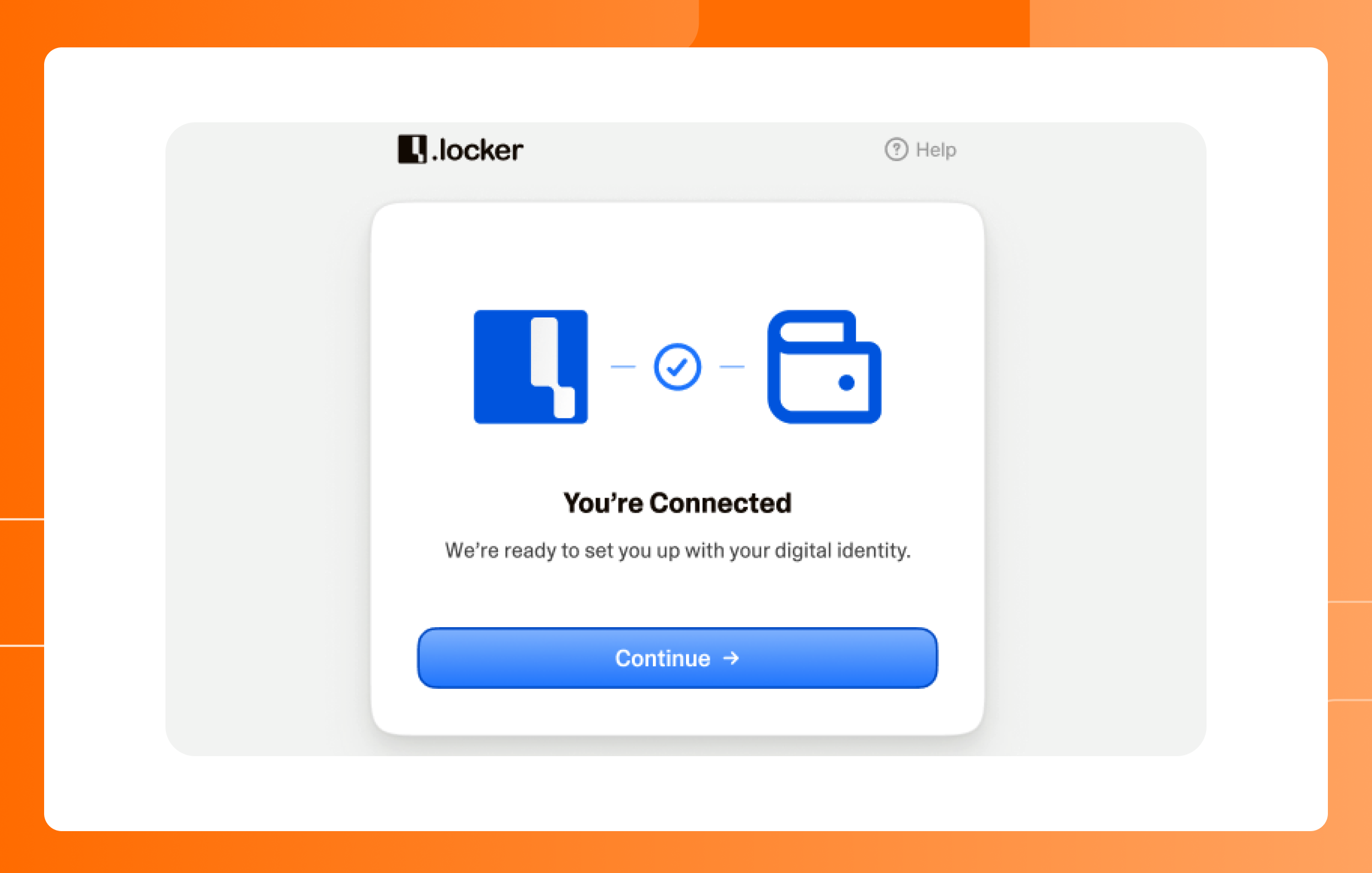
6. Once you complete the signature, click “Continue” in the .locker application.
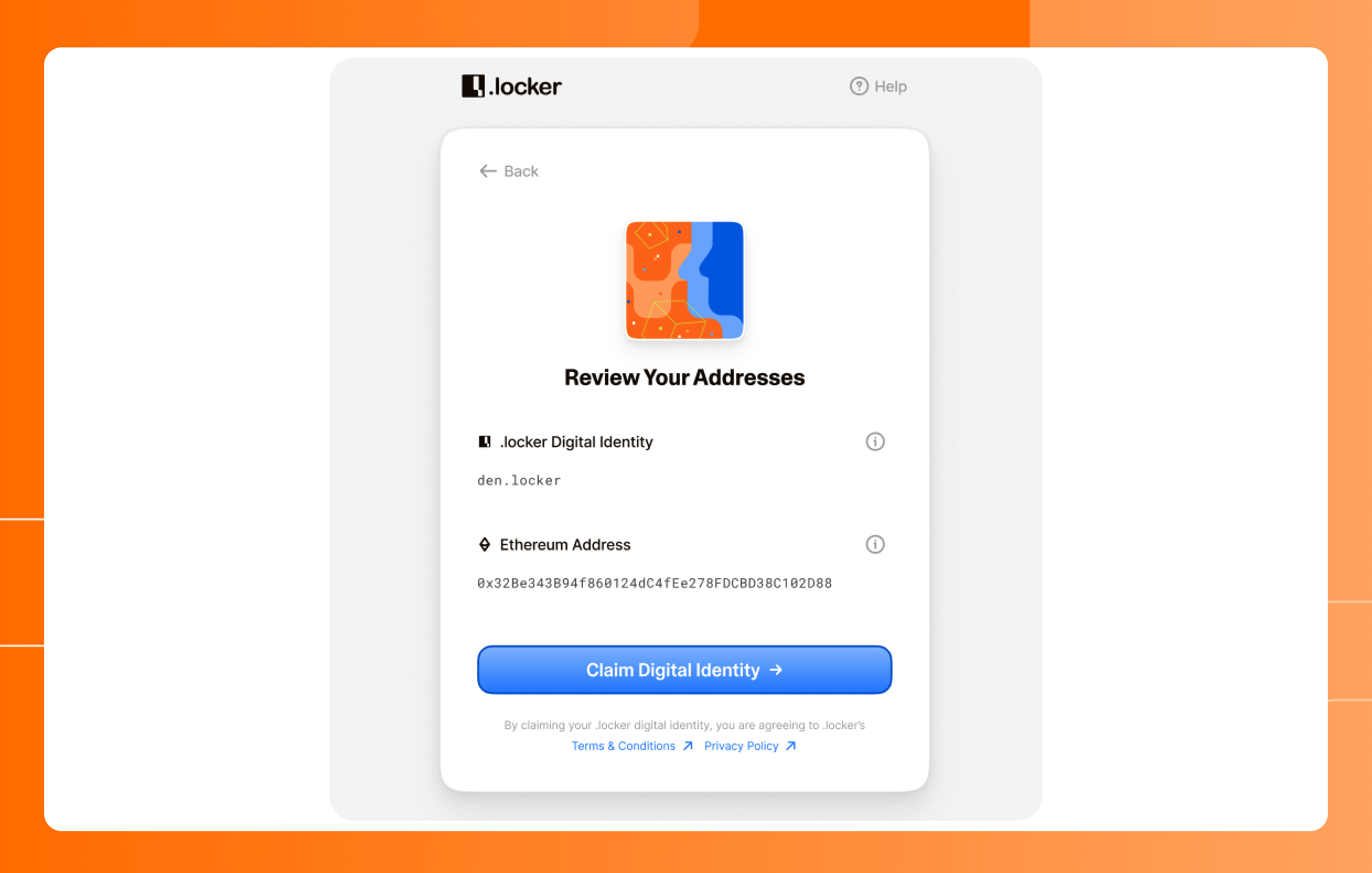
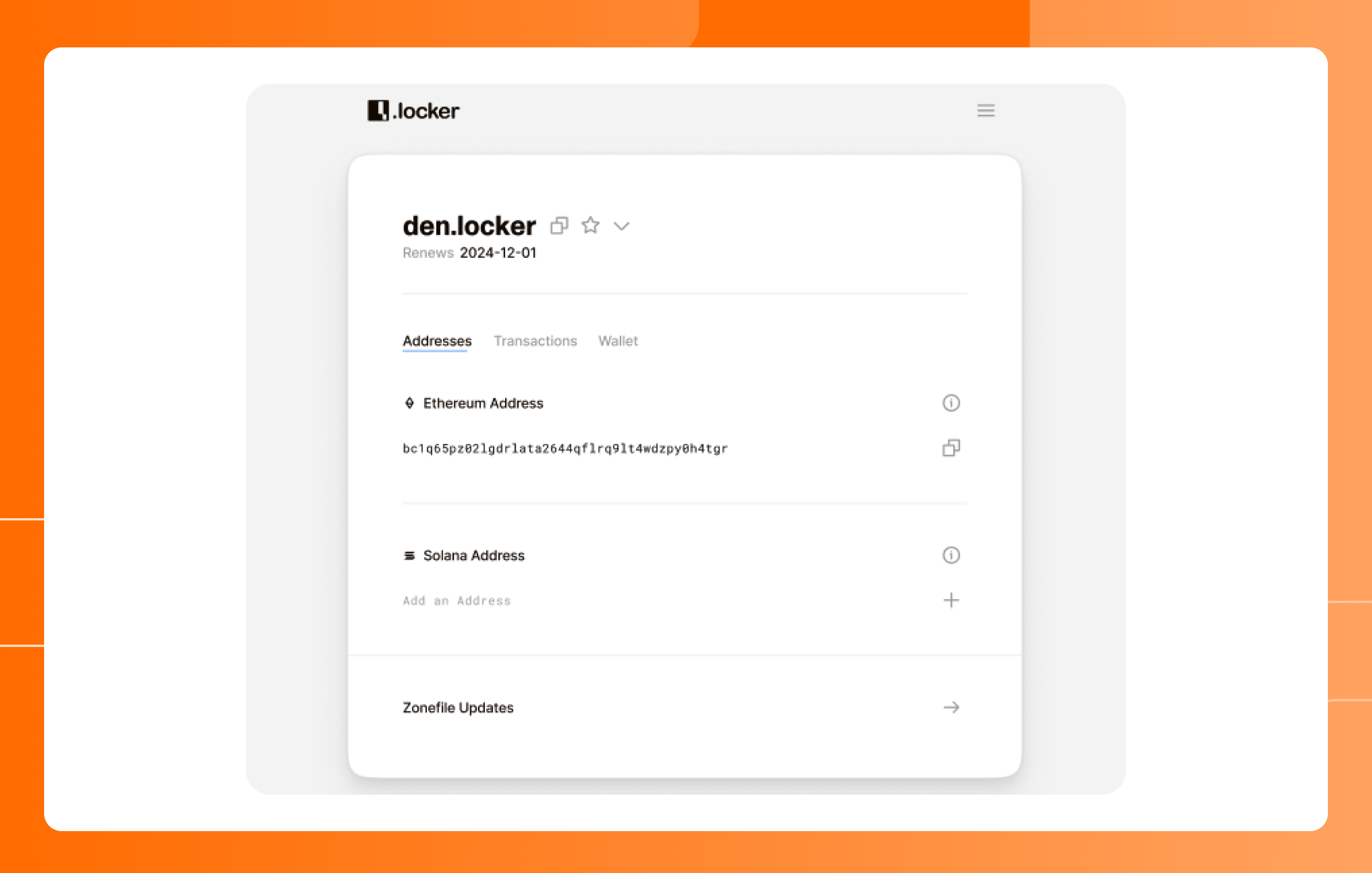
7. Review your addresses and click “Claim Digital Identity.” Don’t worry about saving your Ethereum address during this step. You’ll have access to it on your dashboard.
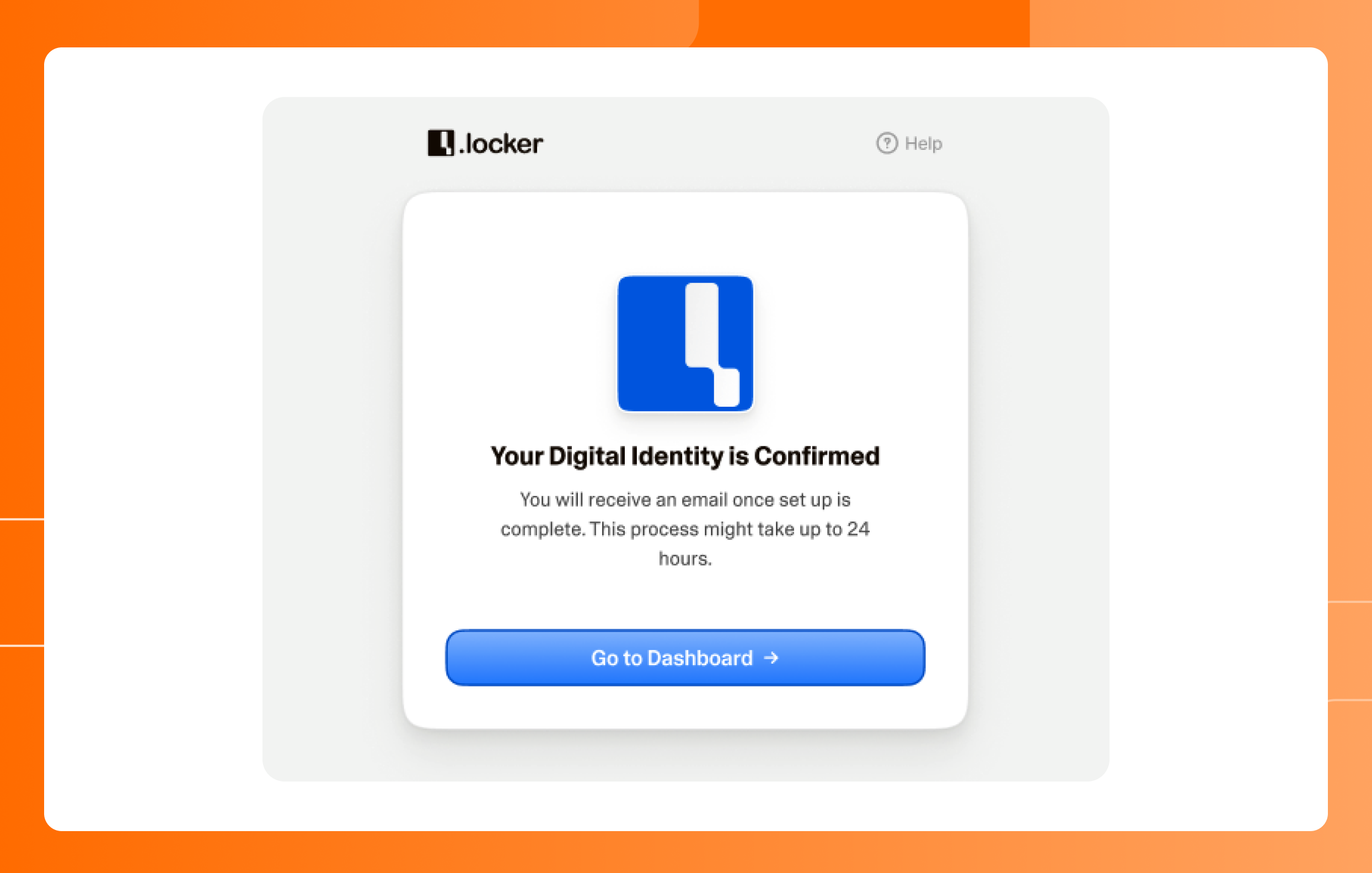
8. Once you see the confirmation screen, the process to initiate the claim of your .locker digital identity is complete. Click “Go to Dashboard."
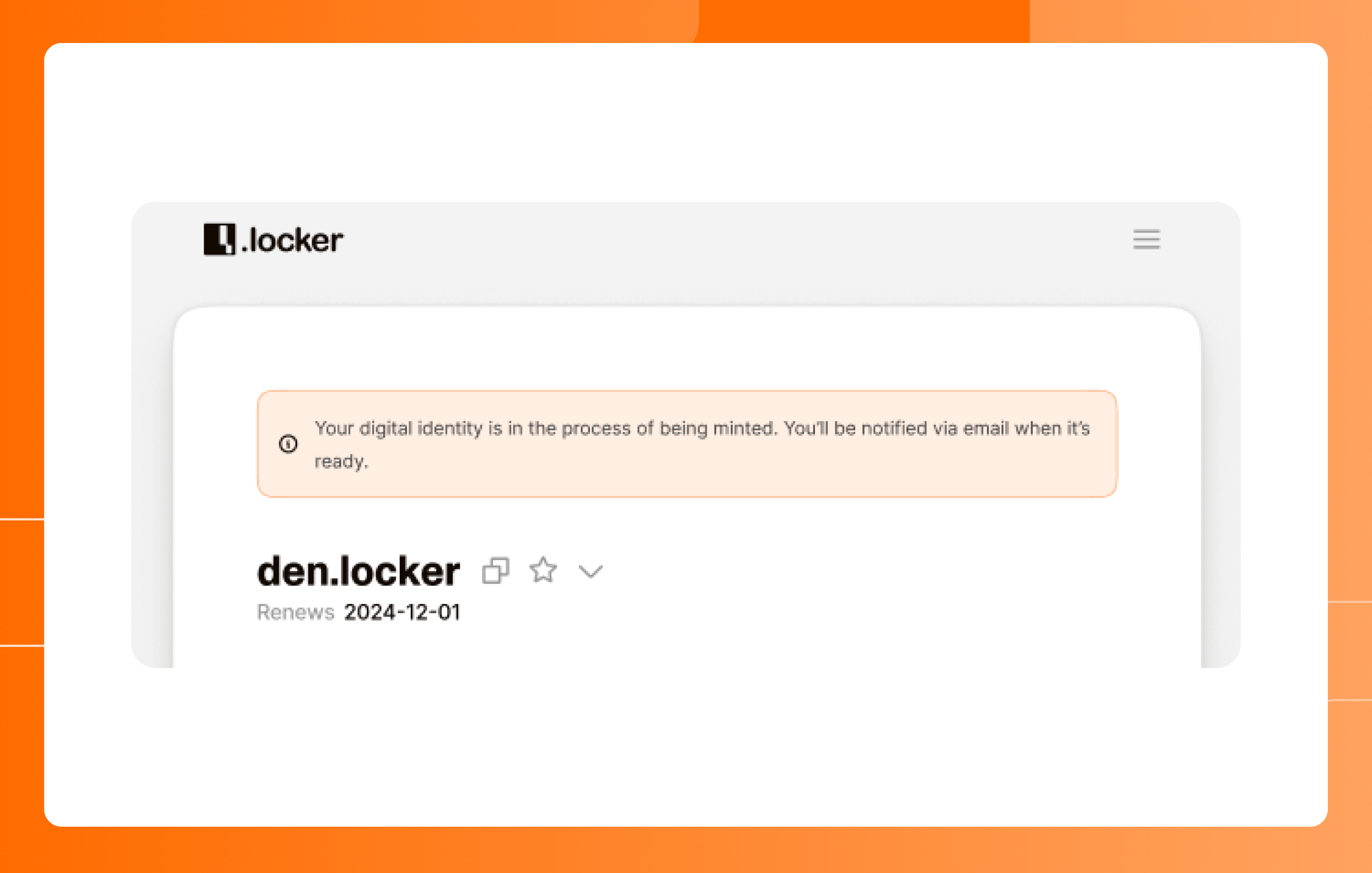
9. On your .locker dashboard, you’ll see a notification that your digital identity is in the process of being minted. After a few minutes, this notification will disappear and a confirmation email will be sent to your inbox.
10. Once minted, your digital identity is ready to use! Manage your addresses and digital identities using the .locker app. Manage your digital assets directly in your digital wallet.
Troubleshooting & Support
- If you encounter a broken link from your email, review our broken link guide to troubleshoot
- If you cannot locate your digital identity NFT in your digital wallet, please contact .locker's support team
- Remember that your domain registrar cannot assist with the digital identity claiming process. If you need help, please contact .locker’s support team
